Upload documents
Adding documents to your League account is an easy way to submit a beneficiary form or upload documents for dependent verification or recurring claims. There are two potential ways to upload documents to your account:
-
Upload documents under “Documents & Forms”: If you need to fill out a physical beneficiary form or add documents for dependent verification or recurring claims, you can upload them here.
-
Add digital beneficiaries under “Documents & Forms”: If your carrier accepts digital beneficiaries, you can add their information here.
Upload Documents
If you need to fill out a physical beneficiary form, you can scan it or take a picture of the completed form and upload it under “Documents & Forms”. You can do the same for documents you need to upload to verify a dependent or save for a recurring claim (like a prescription or gym membership).
View instructions for:
On Mobile:
1. Tap the profile icon.

2. Tap the ellipsis (three dots) icon.

3. Tap “Documents & Forms”.
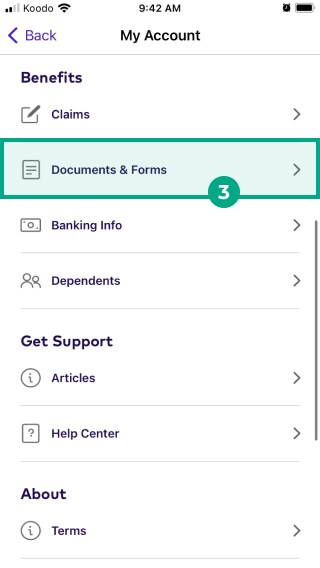
- Tap "Upload a Document".
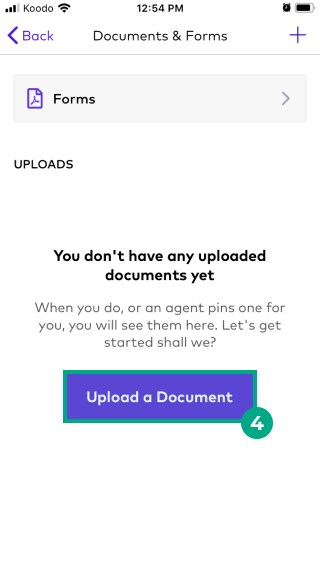
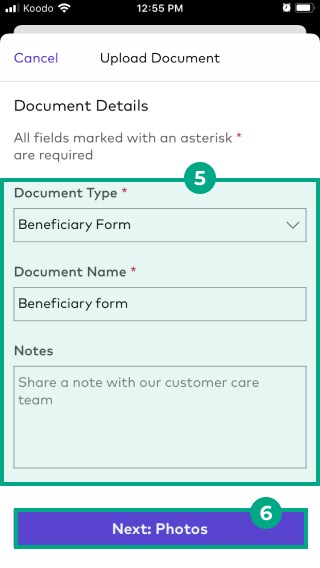
5. Fill out the "Document type", "Document name", and add in any important notes in the "Notes" section.
6. Tap "Next: Photos" to upload your document to your account.
-d1c1390e80985d0626e75d73006ee09c.jpeg)
You can review your stored documents at any time and make changes when necessary.
On Web:
1. Click the menu in the top right-hand corner.
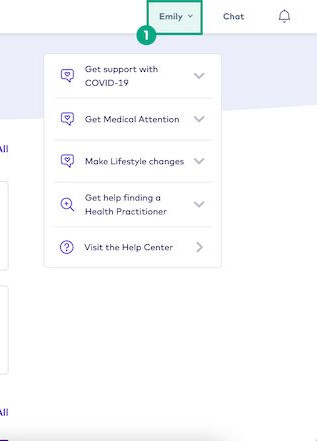
2. Once the drop-down menu appears, click "Documents & Forms".
-08dd1b96f0989bad4f7eeb7f53236de5.png)
3. To upload your document, click on "Upload a Document".
-6f768e5a67ed978be95c1e9a1dc407ea.png)
4. Fill out the "Document type", "Document name", and add in any important notes in the "Notes" section.
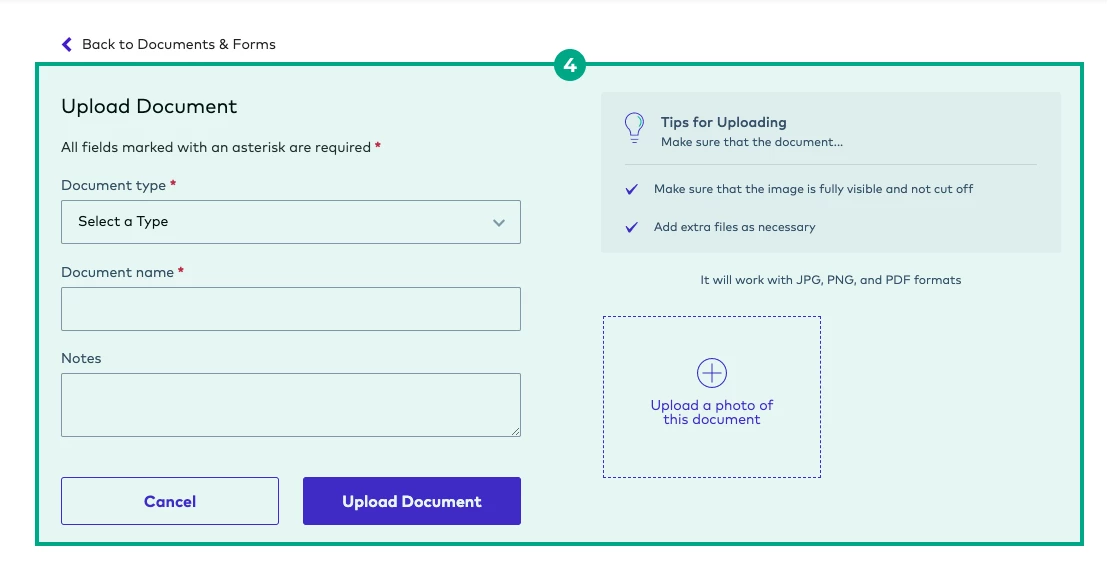
5. Next, click "Upload a photo of this document" to upload your document to your account.
You can review your stored documents at any time and make changes when necessary.
-3173e28e0c0dab6a58d15eb128fb6c98.png)
Need help finding a specific form or template? Please contact our Customer Care team through Chat or email us at [email protected]..
Add digital beneficiaries
If your insurance carrier accepts digital beneficiaries, then you can add their information right in your League account without ever filling out a form. Isn’t technology great?
Note: Digital beneficiaries can only be added on desktop.
To add a digital beneficiary:
1. Sign in to your League account on desktop.
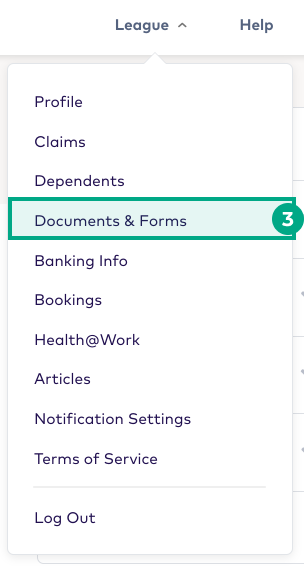
2. Click the menu in the top right-hand corner.
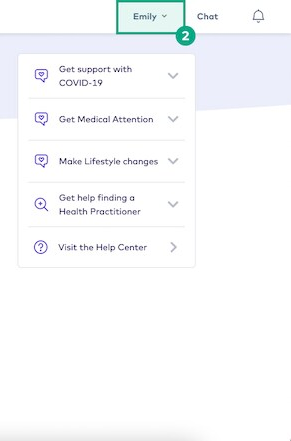
3. Click “Documents & Forms”.
4. Click the “Forms” tab.

5. Click “Add Beneficiary”.
-3f90fbdc016547dadaf80f673cb5fdf8.jpeg)
6. Click “Add Beneficiary” beside each benefit and type of beneficiary you want to add (primary or contingent).
Tip: Remember, you can add more than one primary and contingent beneficiary for each benefit.
-426d0d12298cdd65ab4799a359042c9e.jpeg)
7. Either select an existing beneficiary or click “Create New”. If you chose an existing beneficiary, continue to step 10. If you chose to create a new beneficiary, continue to the next step

8. Select the type of beneficiary you want to add. This can be a person or an organization (like a charity or trust).
-957d6d35b67b8562adb2c6487f06ed18.jpeg)
9. Fill out the required fields with your beneficiary’s information and click “Save”.
-91c452a277f7f2efc46536592ed22701.jpeg)
10. Enter the percentage of the benefit you want the beneficiary to receive. The total percentage must equal 100%.
-250d66279fc151663296e8bacea1a402.jpeg)
11. Click “Save & Submit”.
Important: You must Save & Submit your beneficiary designations. If you don’t, your beneficiaries won’t be submitted and your information won’t be saved.
-5b48a86a294c7fb44f10b98159040ce8.jpeg)
You can view your digital beneficiary designations and make changes anytime under the “Forms” tab in your Documents & Forms. Click “View Form” to view and save a PDF summary of your beneficiary designations.
-faaebe2bfe33475f489d78c6bc8a75f5.jpeg)